


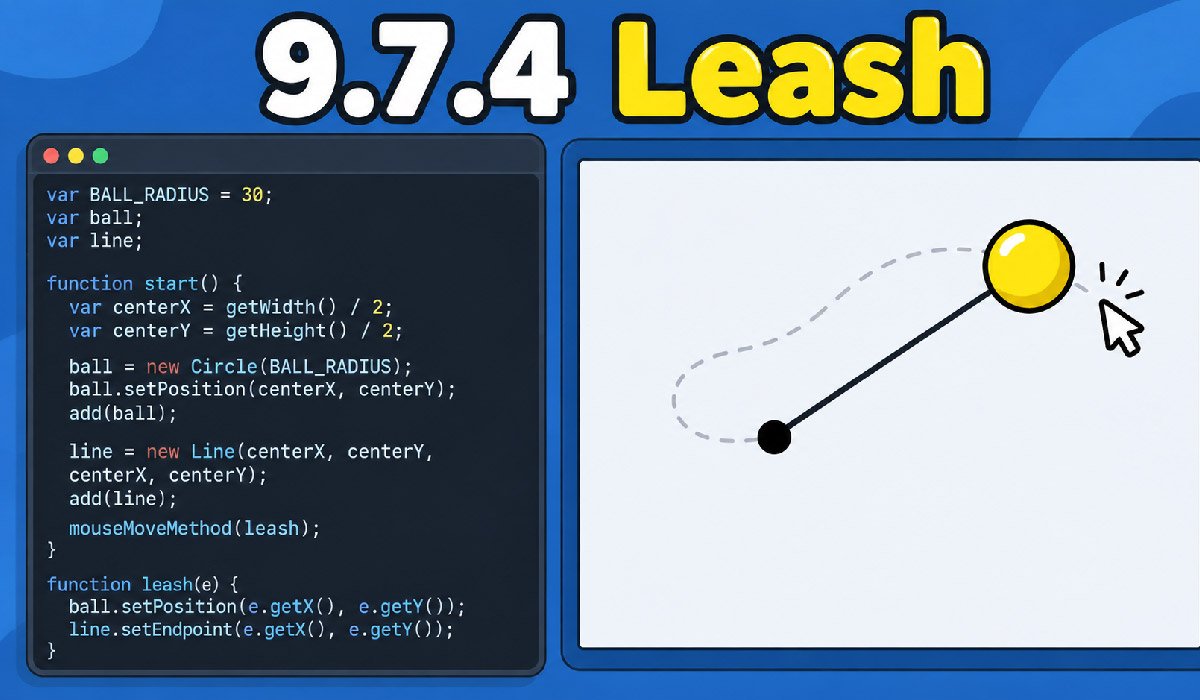
The 9.7.4 leash exercise is a JavaScript graphics activity that teaches students how objects can react to mouse movement. Instead of printing text or calculating numbers, the program works with visual objects on a graphics canvas. The main objects are a Circle that acts as a ball and a Line that works like a leash. At the beginning, these objects are placed around the center of the canvas. When the user moves the mouse, the ball moves toward the current pointer position.
The line creates the visual leash effect. One end remains fixed around the center of the canvas, while its other endpoint follows the moving ball. This means the line becomes longer, shorter, or changes direction as the pointer travels around the screen. Pasted markdown
The exercise is useful because it introduces several programming ideas together. Students work with graphic objects, coordinates, variables, mouse events, callbacks, and methods that update existing objects.
What Does the 9.7.4 Leash Assignment Ask You to Build?
The main goal of 9.7.4 leash is to create an interactive scene where a ball follows the user’s mouse. The ball begins at the center of the graphics canvas. A line also begins there, creating the connection between the fixed center and the ball. The program then waits for the user to move the pointer. Every movement provides a new horizontal and vertical position that can be used to update the graphics.
The Circle needs to move to the current mouse position. At the same time, the endpoint of the Line must move to the same location. The starting point of the Line does not move. This creates the appearance that the ball is connected to the center by a flexible leash. Pasted markdown
Understanding this required behavior first makes the code easier to follow. The exercise is mainly about creating objects once and then changing their positions in response to an event.
Complete 9.7.4 Leash CodeHS Answer
A working 9.7.4 leash solution needs a radius value, shared variables for the graphic objects, a start() function, and a mouse event function. The supplied example uses the following structure. Pasted markdown (2)
var BALL_RADIUS = 30;
var ball;
var line;

function start() {
    var centerX = getWidth() / 2;
    var centerY = getHeight() / 2;

    ball = new Circle(BALL_RADIUS);
    ball.setPosition(centerX, centerY);
    ball.setColor(Color.yellow);
    add(ball);

    line = new Line(centerX, centerY, centerX, centerY);
    add(line);

    mouseMoveMethod(leash);
}

function leash(e) {
    ball.setPosition(e.getX(), e.getY());
    line.setEndpoint(e.getX(), e.getY());
}
The program is short because it does not need to create graphics repeatedly. The objects are created when start() runs. After that, leash(e) changes their positions whenever mouse movement occurs.
The important part is understanding the relationship between these commands. The Circle and moving Line endpoint receive the same coordinates, which keeps them visually connected.
Understanding BALL_RADIUS and the Main Variables
The 9.7.4 leash program begins with var BALL_RADIUS = 30;. This value determines the radius of the Circle used as the ball. A radius of 30 produces a Circle with a consistent size. Using a named value also makes the code easier to read because a student can immediately understand what the number controls instead of finding an unexplained 30 inside the Circle constructor.
The next variables are ball and line. They do not immediately contain graphic objects. They provide names that can later refer to the Circle and Line created inside start(). Both are declared outside the functions because more than one part of the program needs access to them. Pasted markdown (2)
This structure separates configuration, object references, setup, and movement logic. If the ball size needs to change, the radius value can be edited. The movement code does not need to change because it continues working with the same ball object.
Why Global Variables Matter in 9.7.4 Leash
Variable scope is an important part of the 9.7.4 leash solution. The Circle and Line are created during setup, but they also need to be accessed later when the mouse moves. Declaring ball and line outside the functions makes these variables available to both start() and leash(e). This allows the event function to update the exact objects that were originally placed on the canvas.
A common mistake is writing var ball = new Circle(BALL_RADIUS); inside start() after a global ball has already been declared. That can create a local variable instead of assigning the graphic object to the shared variable expected by the event function. The supplied material identifies this as an important issue when working with the exercise. Pasted markdown
The safer pattern is to declare var ball; outside the functions and later use ball = new Circle(BALL_RADIUS);. The same approach applies to the Line.
Finding the Exact Center of the Graphics Canvas
The 9.7.4 leash program needs a starting location for its objects, and the center of the canvas provides a natural anchor. CodeHS provides getWidth() and getHeight() for obtaining the current dimensions of the graphics area. Dividing each dimension by two gives the coordinates of the center.
var centerX = getWidth() / 2;
var centerY = getHeight() / 2;
centerX represents the horizontal middle, while centerY represents the vertical middle. These values can then be reused when creating and positioning the Circle and Line. Pasted markdown (2)
Calculating the center is more reliable than entering fixed coordinates such as 200, 200. A hard-coded location depends on a particular canvas size. If the graphics dimensions change, that point may no longer be centered. Using width and height calculations allows the program to determine its starting point from the actual canvas dimensions whenever it runs.
How the Ball Is Created and Positioned
The moving ball in 9.7.4 leash is a CodeHS Circle. It begins with ball = new Circle(BALL_RADIUS);, which creates the object using the radius defined earlier. Creating the Circle alone does not determine where it should appear. The program therefore calls ball.setPosition(centerX, centerY); to place its center at the middle of the canvas.
The example then uses ball.setColor(Color.yellow); to control its appearance. Finally, add(ball); places the Circle onto the visible graphics canvas. These steps represent different operations: creating an object, choosing its position, changing its appearance, and adding it to the canvas. Pasted markdown (2)
This difference is important for beginners. A Circle can be created in the program without being displayed if it is never added. Once the ball has been added, the program does not need to create it again. Later mouse events simply update this same Circle.
How the Leash Line Is Created
The Line is the second major graphic object in 9.7.4 leash. A Line needs two points, and each point requires an X and Y coordinate. The constructor therefore receives four coordinate values:
line = new Line(centerX, centerY, centerX, centerY);The first centerX, centerY pair describes the starting point. The second pair describes the endpoint. At the beginning, both points occupy the same location. The Line consequently has little or no visible length before mouse movement occurs. This is expected behavior rather than a problem with the program. Pasted markdown (2)
Once the mouse begins moving, only the endpoint changes. The starting point remains at the original center coordinates. As the endpoint travels farther away, the Line stretches across the canvas. When the pointer moves closer to the center, the Line becomes shorter. Its changing length and direction produce the leash effect.
How mouseMoveMethod() Controls the Exercise
The graphics would remain stationary without an event telling the 9.7.4 leash program when to update them. The command mouseMoveMethod(leash); provides this connection. It tells CodeHS that the leash function should be used when the mouse moves over the graphics area. Pasted markdown (2)
This is an example of event-driven programming. After completing its initial setup, the program can wait for user activity. Mouse movement becomes an event, and CodeHS responds by running the registered callback function.
The function name is supplied without parentheses:
mouseMoveMethod(leash);Writing leash() would mean calling the function directly rather than supplying the function for CodeHS to call when an event occurs. This difference is important because the movement function needs event information generated by actual mouse activity. Similar event patterns can later be used for clicks, keyboard input, dragging, and other interactive graphics behavior.
Understanding the Mouse Event and Coordinates
When the registered leash(e) function runs, it receives information about the mouse event. The parameter is called e in the example. The important information for this exercise is the current X and Y position of the pointer. CodeHS provides this through e.getX() and e.getY(). Pasted markdown (2)
X represents horizontal position. Moving toward one side of the canvas changes the X coordinate. Y represents vertical position, so moving upward or downward changes the Y coordinate. Together, these values identify a location on the two-dimensional graphics canvas.
Suppose a mouse event reports an X coordinate of 150 and a Y coordinate of 100. The ball can be positioned at those coordinates. The Line endpoint can also be placed at exactly 150, 100. When the next mouse event occurs, new coordinates are supplied and the objects update again. Repeating this process creates smooth interactive movement while the pointer travels around the canvas.
How setPosition() Makes the Ball Follow the Mouse
The ball movement in 9.7.4 leash is handled by one important command:
ball.setPosition(e.getX(), e.getY());setPosition() changes the location of the Circle that already exists. Its first argument supplies the new X position, and its second argument supplies the new Y position. Because both values come directly from the mouse event, the Circle is moved to the current pointer location whenever the callback runs.
The important concept is that the program updates an existing object rather than creating a replacement. Creating new Circle() every time the pointer moved would generate additional Circle objects instead of simply changing the original ball. The provided material specifically recommends creating the graphics once and updating their positions afterward. Pasted markdown
This approach also demonstrates object state. The ball remains the same object throughout the program, but one of its properties—its position—continually changes in response to user input.
How setEndpoint() Produces the Leash Effect
The Line behaves differently from the Circle because the entire Line should not follow the mouse. One point must remain anchored at the center. The 9.7.4 leash program therefore uses:
line.setEndpoint(e.getX(), e.getY());setEndpoint() changes the moving end of the Line while leaving its original starting point in place. The endpoint receives the same current mouse coordinates that are given to the ball. The result is a Line that continuously stretches between the fixed center and the moving Circle. Pasted markdown (2)
This distinction is central to the exercise. If both ends of the Line followed the pointer, the entire Line could move around the canvas instead of remaining attached to the center. By changing only the endpoint, the program preserves its anchor. As the ball changes direction, the Line automatically changes its angle. As the distance changes, the visible length changes as well.
Why the Ball and Leash Must Share the Same Position
The visual connection in 9.7.4 leash depends on synchronization. The ball and moving endpoint of the Line must receive exactly the same coordinates. That is why the event function contains these two related commands:
ball.setPosition(e.getX(), e.getY());
line.setEndpoint(e.getX(), e.getY());
Imagine that the current mouse location is X 150 and Y 100. The Circle moves to 150, 100, and the Line endpoint also moves to 150, 100. Their positions therefore meet. If the pointer moves to a different location, both receive the new coordinates and continue meeting there. Pasted markdown
If different values were supplied to the two objects, the Line could end beside or away from the Circle. The visual connection would be lost. Using one event as the coordinate source for both graphics ensures that their movement remains synchronized without requiring complicated calculations or separate tracking systems.
Understanding the Complete Program Flow
The complete 9.7.4 leash program can be understood as two main stages. First comes initialization. When start() runs, the program calculates the center of the canvas, creates the Circle, positions it, creates the Line, adds the required graphics, and registers the mouse movement callback. This setup happens before the interactive movement begins.
The second stage is event handling. After initialization, the program waits for mouse activity. Whenever the pointer moves, CodeHS calls leash(e). That function reads the current mouse coordinates. It gives those coordinates to the Circle through setPosition() and to the Line through setEndpoint(). The existing objects change rather than being recreated. Pasted markdown (2)
The process then repeats for later mouse events. This simple flow—create once, wait for input, and update existing objects—is one reason the final program requires relatively little code despite producing continuous interactive movement.
Common 9.7.4 Leash Errors and Easy Fixes
Several small errors can prevent 9.7.4 leash from behaving correctly. If the Circle appears but does not move, the mouse event registration should be checked first. Without mouseMoveMethod(leash);, the movement function will not be connected to mouse activity. If the ball moves but the Line does not, check whether setEndpoint() receives both the current X and Y coordinates.
Variable scope can also cause trouble. If separate local ball or line variables are accidentally created, the callback may not have access to the intended graphics. Another possible mistake is creating new objects every time the mouse moves instead of updating the existing Circle and Line.
Spelling and capitalization matter as well. JavaScript is case-sensitive. Methods such as getX(), getY(), setPosition(), setEndpoint(), and mouseMoveMethod() need the expected capitalization. Pasted markdown (2) Checking these details one at a time can make debugging much easier.
How to Test the 9.7.4 Leash Program
Testing 9.7.4 leash should begin with the initial screen. Run the program before moving the mouse and look at the center of the canvas. The Circle should appear there. The Line may initially be difficult to see because its start and end points occupy the same location. That is normal for this setup.
Next, move the mouse slowly across the graphics area. The Circle should follow the pointer. The endpoint of the Line should follow the Circle while the opposite end remains fixed in the original center. Move the pointer toward different corners to make sure horizontal and vertical movement both work correctly. Pasted markdown (2)
Students can also experiment with BALL_RADIUS. Changing 30 to 20 should create a smaller Circle, while changing it to 40 should create a larger one. The movement behavior should remain the same because ball size and event handling are separate parts of the program.
What the 9.7.4 Leash Exercise Teaches
Although 9.7.4 Leash is a small graphics task, it introduces concepts that can be reused in larger interactive programs. Students learn how a coordinate system describes locations on a canvas and how methods such as setPosition() can change an object’s state after it has been created. They also see how multiple objects can respond to the same input.
The exercise introduces event-driven programming through mouseMoveMethod(). Instead of executing every action immediately in a fixed sequence, the program registers a function and waits for user input. It also demonstrates why variable scope matters when one function creates an object and another function later needs to manipulate it.
These ideas can support later graphics projects involving drawing tools, cursor effects, simple games, dragging, and other mouse-controlled interactions. The provided material identifies these broader interactive applications as a natural extension of the same programming pattern. Pasted markdown (2)
Final Thoughts
The 9.7.4 leash exercise becomes much easier when its code is viewed as a small set of connected ideas. The program first finds the center of the canvas and creates one Circle and one Line. Those objects remain available so they can be updated after initialization. Mouse movement then supplies fresh X and Y coordinates through an event object.
setPosition() gives the Circle its new location, while setEndpoint() moves only the changing end of the Line. Because both receive the same coordinates, the ball and leash stay visually connected. One end of the Line remains anchored in the center, producing the required effect.
Similar Leash activities may appear under different lesson numbers in different course layouts, so the behavior of the assignment is more important than relying only on its number. Pasted markdown Understanding the event, coordinates, variables, and object updates makes the underlying CodeHS graphics pattern much easier to reuse.
(FAQs)
What is 9.7.4 Leash in CodeHS?
The 9.7.4 leash exercise is a JavaScript graphics activity where a Circle follows the mouse while a Line connects the moving Circle to a fixed point near the center of the canvas.
How does the ball move in 9.7.4 Leash?
The ball moves using ball.setPosition(e.getX(), e.getY()). The mouse event provides the current X and Y coordinates, allowing the existing Circle to follow the pointer as it moves.
Why are ball and line global variables?
The ball and line variables are global because both start() and the mouse event function need access to the same graphic objects. This allows the objects to be created once and updated later.
What does setEndpoint() do in 9.7.4 Leash?
setEndpoint() changes the endpoint of the Line without changing its fixed starting point. Giving it the current mouse coordinates makes the Line stretch from the center of the canvas toward the moving ball.
Why is mouseMoveMethod() important in 9.7.4 Leash?
mouseMoveMethod(leash) Connects mouse movement with the leash function. Whenever the pointer moves over the graphics canvas, CodeHS runs the function so the Circle and Line endpoints can update.
