


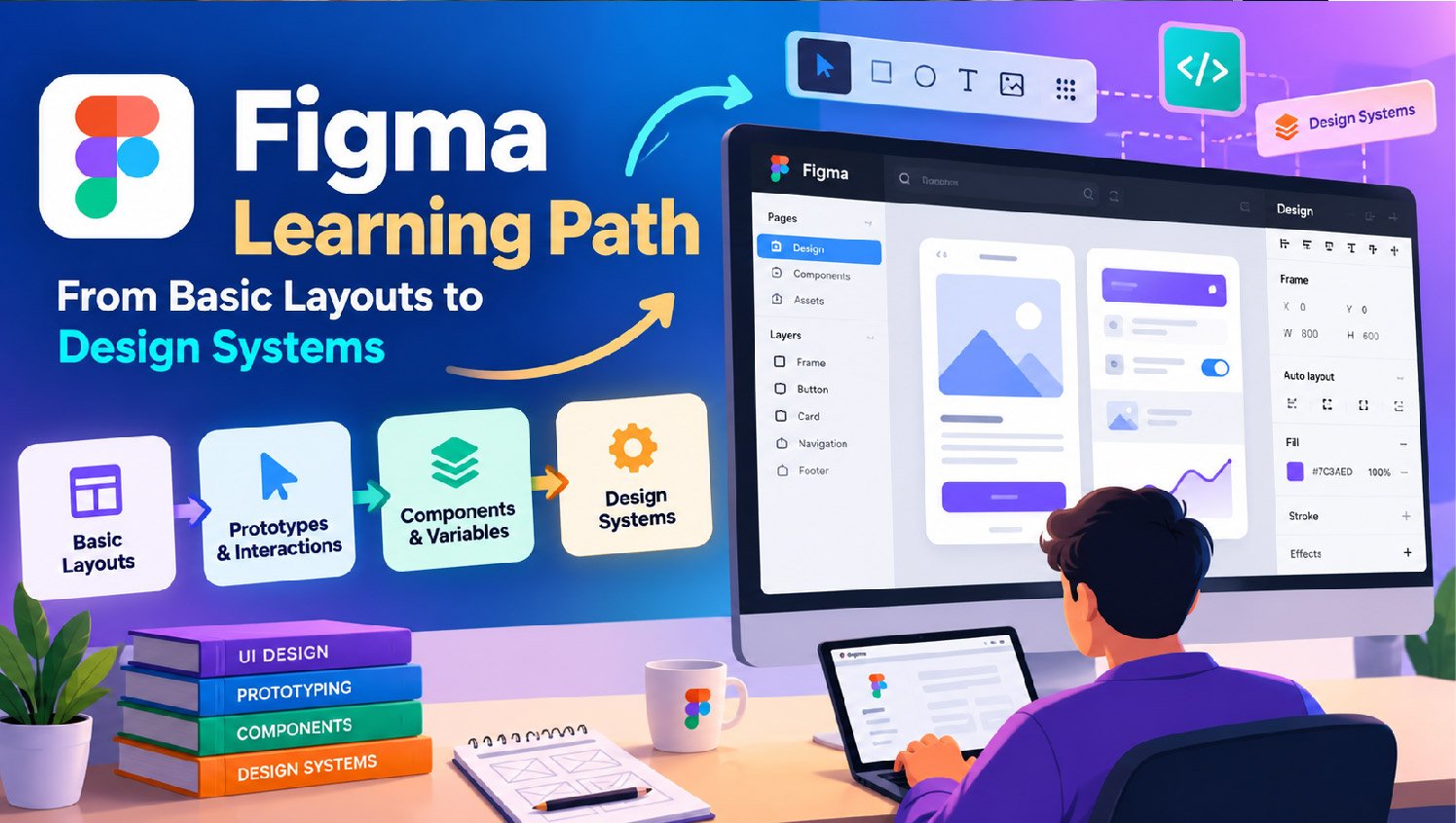
Figma is easier to learn when you treat it as a product design workflow rather than a collection of isolated features. A structured path helps designers, developers, product managers, and cross-functional teams move from simple screens to reusable systems without getting stuck in endless tutorials.
If you prefer guided instruction alongside hands-on practice, Figma Classes can provide a useful starting point. The most important goal, however, is to apply each new skill to a small project that includes layout decisions, interaction design, feedback, and collaboration.
Why A Learning Path Helps
Trying to learn every panel, plugin, shortcut, and advanced feature at once often slows progress. Strong Figma users do more than place shapes on a canvas. They organize files, create layouts that adapt to content, communicate behavior, test flows, and prepare work that others can understand. Learning those skills in stages makes practice more focused and useful.
Start With The Core Tools
Begin with frames, pages, layers, sections, text, shapes, images, fills, strokes, alignment, spacing, and simple grids. Practice naming layers clearly and grouping related content so another person can inspect the file without guessing. Learn how sharing permissions, comments, and version history support everyday teamwork.
You are ready to move beyond the basics when you can build a simple screen, keep its layers organized, align content consistently, and share it for review without needing to explain where everything is located.
Build A Small Practice Project
A focused project teaches more than random exercises. Choose one user and one task, such as registering for an event, signing up for a service, or reviewing activity in a dashboard. Sketch the main screens before opening Figma, choose a restrained visual direction, and then build only the screens needed for the primary flow.
- Define the user and the outcome they want.
- Sketch the essential screens and states.
- Build the screens with consistent type, color, and spacing.
- Connect the main path in a prototype.
- Ask someone to attempt the task.
- Revise the design based on what confused them.
Learn Layout And Responsive Design
Layout skill matters more than decorative effects because products must accommodate changing content and screen sizes. Use Auto Layout for repeated groups such as buttons, form rows, cards, and navigation. Apply consistent spacing values, let text and content influence element size, and use constraints or resizing settings to preserve the intended relationships between elements.
Test more than one frame width. Check long labels, validation messages, empty states, and buttons with different text lengths. Avoid manually positioning every layer when the relationship can be expressed through layout rules.
Move From Screens To Prototypes
Prototypes turn static screens into a sequence that people can review and test. Start with links between screens, a clear starting point, scrolling areas, overlays, and realistic states such as confirmation or error messages. A simple clickable flow is enough when the team needs to validate navigation or screen order. Higher-fidelity interactions are more useful when motion, complex inputs, or conditional behavior could change the decision.
Teams that make prototyping part of regular product discussions can uncover interaction questions before development begins, which is why interactive prototypes can help teams examine product behavior earlier in the design process.
Use Components And Variables
Once repeated patterns are visible, replace copies with reusable components. Components work well for buttons, form fields, navigation, cards, and content blocks. Use properties and variants to represent options and states. For example, a single button component can include default, hover, disabled, and loading variants, rather than four unrelated button layers.
Variables can support shared values for color, spacing, modes, and themes. The practical advantage is consistency: when a shared value changes, connected design elements can be updated together instead of being edited one by one.
Create A Useful Design System
A design system is not simply a large component library. It combines foundations, reusable patterns, naming conventions, usage guidance, and maintenance habits. Start with repeated problems that appear across real product work. Define color, type, spacing, and accessibility expectations, then create a small set of dependable components that solve those problems.
Document when to use a component, review it with designers and developers, and remove patterns that create ambiguity. A small system built around clear foundations and reusable assets is usually more valuable than an oversized library that nobody trusts.
Work With Developers And Stakeholders
Share the problem before presenting the solution. Explain what should happen, not only how a screen should look. Include loading, empty, success, and error states, then invite developer input before handoff. Use comments to record unanswered questions and decisions, and keep approved work clearly labeled so the team knows what is up to date.
Add AI With Care
AI-assisted tools can help generate early ideas, draft interface copy, explore layout directions, or speed up repetitive tasks. Treat the output as a starting point rather than a final answer. Check accessibility, clarity, accuracy, brand fit, and alignment with the existing design system. Do not enter confidential product information into tools that are not approved for that use.
Common Learning Mistakes
- Memorizing shortcuts before understanding layout principles.
- Adding many plugins before establishing a reliable workflow.
- Ignoring responsive behavior and content changes.
- Creating components with unclear names or no usage rules.
- Polishing screens before testing the user flow.
- Waiting until the end of a project to request feedback.
- Treating a design system as a one-time deliverable.
A 30-Day Practice Plan
- Days 1-7: Practice frames, layers, text, shapes, spacing, and file organization.
- Days 8-14: Build a small screen set using Auto Layout and responsive rules.
- Days 15-21: Add components, variants, variables, and a basic prototype.
- Days 22-30: Test the flow, collect feedback, document decisions, and prepare a handoff view.
Measure progress by completed work, not hours spent. By the end of the month, aim to have one clear user flow, reusable patterns, realistic states, a testable prototype, and a brief explanation of the design decisions.
Conclusion
The strongest Figma workflow is steady and project-based. Choose one small product flow, build it in stages, test it with another person, and improve it after feedback. Feature knowledge matters, but the real value comes from turning product problems into clear, testable, organized experiences that a team can confidently build.
Read More: Everything I found Unique About Lost Records: Bloom and Rage
