



Whenever my Windows PC became slow, I followed a manual cleanup routine. I checked Task Manager, startup apps, temporary files, and storage space. I also searched for unnecessary background processes.
Manual cleanup can work well. However, it takes time and requires knowing where to look. Windows keeps many maintenance tasks in different places. Repeating the cleanup process took too much time. I eventually started using Advanced SystemCare as my main Windows cleaner. It gave me a simpler way to handle routine PC maintenance.
In this guide, I’ll explain my manual Windows cleanup routine, why it took so long, and how Advanced SystemCare changed my workflow. I’ll also compare both methods.
What Manual Windows Cleanup Usually Looks Like for Me
Before I started using a dedicated PC cleaner, I maintained my PC manually. The process involved several steps. I had to check different parts of Windows one by one. Here’s my checklist.
Checking Task Manager
My first step was always to open Task Manager. I checked CPU and memory usage. I also reviewed background processes to identify apps using excessive resources. Then, I checked the Startup tab to see which apps launched with Windows. This helped me identify possible causes of slowdowns. However, it took time, and I was often unsure what to change.
Cleaning Temporary Files
Next, I cleaned temporary files. Windows includes Disk Cleanup, but some temporary data can remain in other folders. Some files are stored in app folders, browser caches, and user folders. I manually cleared temporary files, browser cache, and leftover app data. Finding and removing them took extra time.
Reviewing Startup Programs
Identifying unnecessary startup apps took time. I had to check each program and decide if it needed to run when Windows started. Some were easy to identify, but others had unclear names. I had to research some programs online to understand their purpose. This could take 15 to 20 minutes on its own.
Checking Large Files
Finding large files was another time-consuming task. I opened File Explorer and sorted files by size. Then I checked various folders to see which was using the most storage. This was frustrating because files were spread across different drives and folders. Some large files were also hidden in system folders.
Checking Browser Clutter
Finally, I’d tackle browser cleanup. This meant clearing cache, browsing history, cookies, and reviewing extensions. Each browser required separate attention, and I had to decide which data to keep and which to remove.
The hardest part was not doing the cleanup. It was knowing where to start. The trial and error made manual cleanup take much longer than I expected.
Where Advanced SystemCare Changed My Workflow
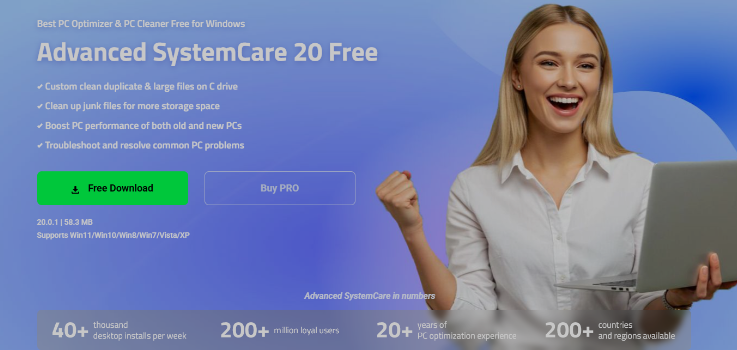
I wanted to spend less time on routine PC maintenance. Advanced SystemCare, a dedicated PC cleaner, provides access to several maintenance tools through a single interface. I can manage cleanup, startup programs, and performance settings from one place. It also offers AI Mode, junk file cleanup, startup optimization, Turbo Boost, Custom Clean for large and duplicate files, and Real-Time TuneUp.
This changed my routine. I no longer needed to search through different Windows settings. I could run a scan and review the suggested improvements. This made regular PC maintenance simpler and less time-consuming.
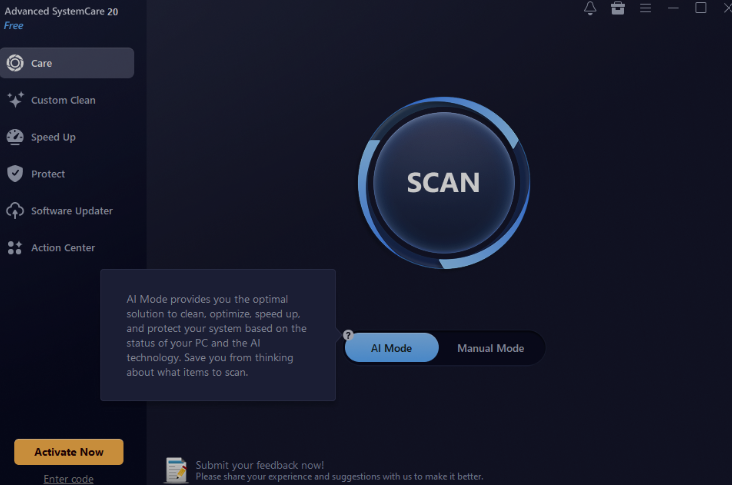
1. AI Mode
I use AI Mode to make the cleanup process more straightforward. It can analyze my PC and identify areas that may need attention. Instead of checking every setting manually, I can review its recommendations in one place. I still check the suggested changes before applying them. This gives me a quicker way to find potential cleanup and optimization tasks.
2. Disk Cleanup
I can rely on Disk Cleanup to locate unwanted files and reclaim storage. It can identify temporary files, cache data, and other unwanted items. This saves me from manually searching through different folders. I review the files before removing them. It makes regular storage cleanup faster and easier.
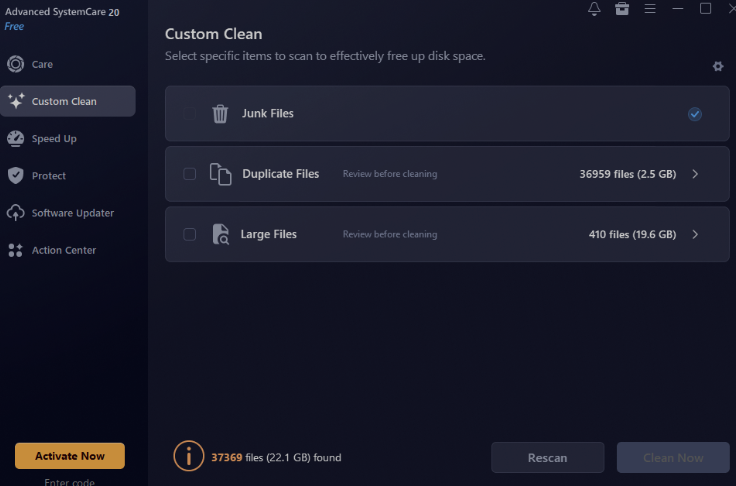
3. Custom Clean
Custom Clean helps me target specific storage bottlenecks on my primary drives. It allows me to find duplicate files, wipe out deep app and Windows caches, and clear heavy junk data without touching critical system files. This gives me direct control over freeing up massive amounts of disk space whenever my system drive runs low.
4. Startup Optimizer
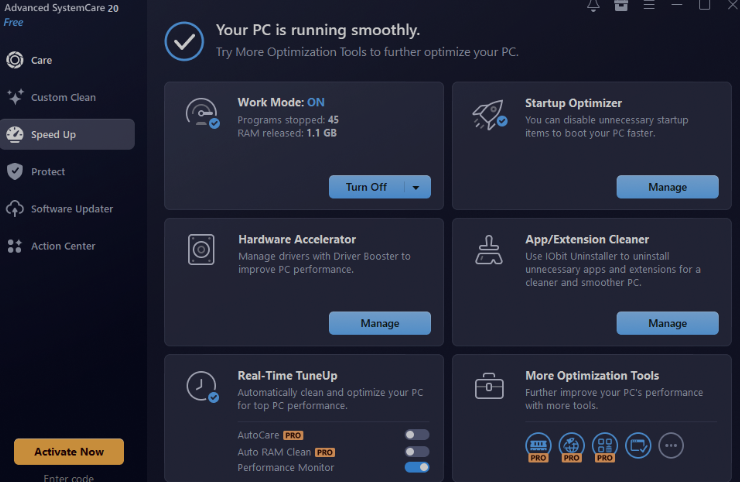
I can use Startup Optimizer to review programs that launch when Windows starts. It helps me identify unnecessary startup apps. This is easier than checking each program individually. I choose which apps to disable based on my needs. This makes startup management quicker and easier.
5. Real-Time TuneUp
Real-Time TuneUp can monitor CPU and RAM usage in the background. It helps manage system resources while the PC is running. In Advanced SystemCare 20, real-time disk and network temperature monitoring is available alongside automatic RAM cleaning to keep performance stable under heavy workloads.
Advanced SystemCare vs. Manual Cleanup: My Workflow
Here is the core comparison between using Advanced SystemCare and a Manual Cleanup workflow for system maintenance.
| Feature / Task | Advanced SystemCare Workflow | Manual Cleanup Workflow |
| Junk File Removal | One-click scan automatically deletes temp files, cache, and logs | Manual deletion via %temp%, prefetch, and Disk Cleanup.
|
| Registry Cleaning | Automated scanning and fixing of broken registry entries. | Manual editing via regedit (risky and time-consuming).
|
| Startup Optimization | Dashboard toggles block resource-heavy startup apps. | Task Manager adjustments via the Startup apps tab. |
| Driver Updates | Automatic detection and installation of outdated drivers. | Device Manager checks or visiting manufacturer websites. |
| Browser Care | Single-button clear for cookies, history, and caches. | Individual settings menus managed per browser. |
| Time Investment | 1 to 3 minutes of passive waiting. | 15 to 30 minutes of active clicking and searching. |
| Risk Level | Low to Medium (automated tools can rarely delete false positives). | High (accidental registry or system file deletion causes crashes). |
| System Resource Impact | Background service runs constantly unless disabled. | Background service runs constantly unless disabled. |
Conclusion
Manual cleanup gave me control, but it often took too much time. I had to check different Windows settings and repeat several tasks. Advanced SystemCare simplified my routine by bringing together many maintenance tools. As a comprehensive PC cleaner, it helped me handle routine cleanup more efficiently and spend less time troubleshooting slowdowns.
FAQs
Q1. Can Advanced SystemCare replace Windows’ built-in tools?
No. Advanced SystemCare is not a complete replacement for Windows tools. It brings several maintenance features together, so I do not need to switch between different settings as often.
Q2. Should I review changes before applying them?
Yes. I recommend reviewing suggested changes before applying them. Review the files, programs, and settings before making changes. This helps prevent accidental removal of important data or useful programs.
Q3. Which option is better for regular PC maintenance?
Both options have benefits. Manual cleanup provides greater control, while Advanced SystemCare simplifies routine PC maintenance. I prefer Advanced SystemCare because it reduces repetitive tasks and saves time.
