


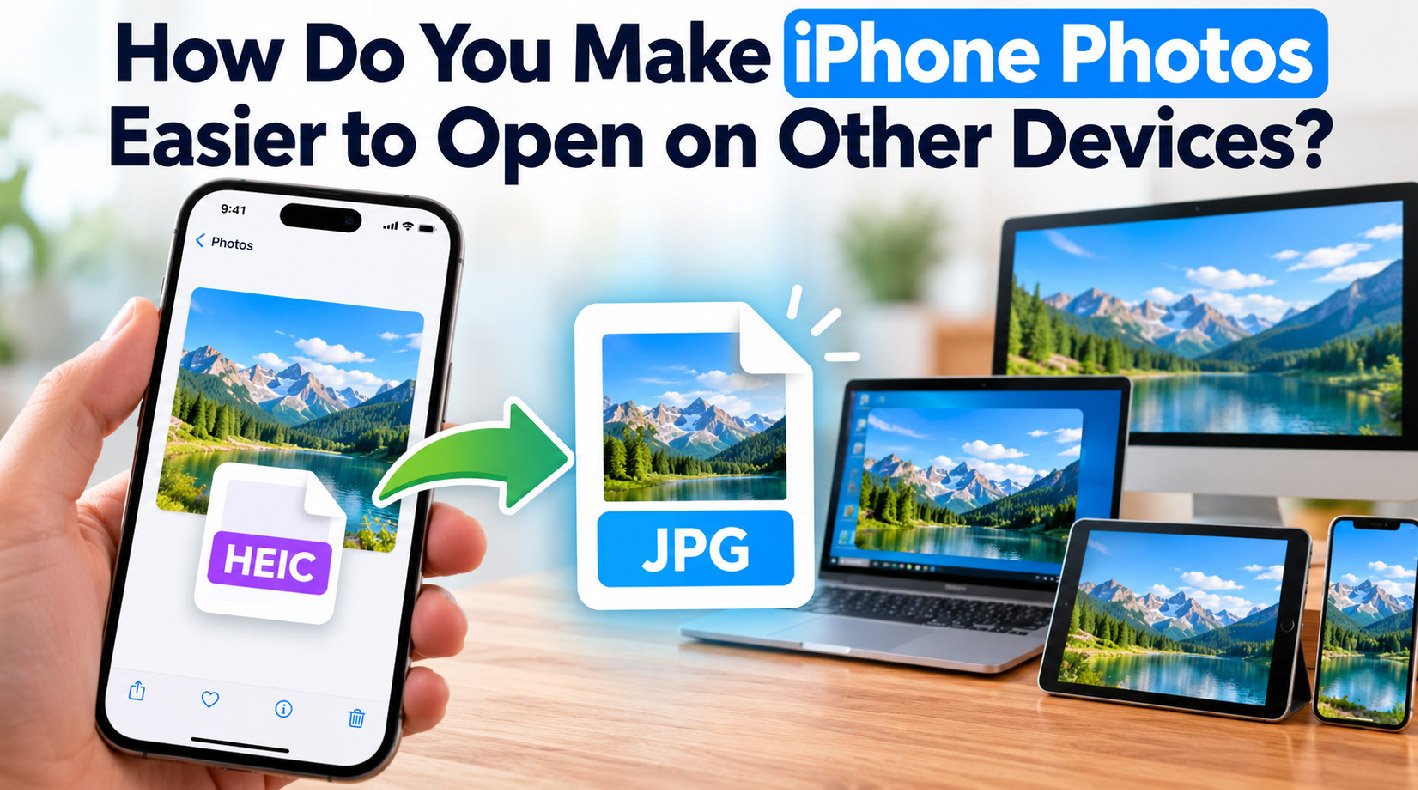
iPhones can save photos in HEIC, a modern image format that keeps file sizes relatively small while maintaining strong image quality. The problem appears when those photos move outside the Apple ecosystem. An older Windows PC, editing program, website, or other device may not recognize the format. The simplest solutions are to convert existing images to JPG or adjust your iPhone so future photos use a more widely supported format.
Why Do iPhones Save Photos as HEIC?
Apple uses HEIC for photos captured with the High Efficiency camera setting. HEIC stands for High Efficiency Image Container, and files commonly use the .heic extension. It is based on the High Efficiency Image File Format, or HEIF.
The main advantage is efficiency. HEIC can store high-quality images without requiring the same amount of storage that older formats may need for comparable visual quality. This matters on a phone where hundreds or thousands of photos can quickly consume available space.
Apple has supported HEIF and HEVC media since iOS 11 and macOS High Sierra. Its official guidance on HEIF and HEVC media also explains that newer Apple devices may automatically choose more compatible formats when media is transferred or shared.
Compatibility, however, depends on the receiving device and software. Modern systems have improved HEIC support, but JPG remains a safer choice when you do not know what hardware, browser, website, or application someone else will use.
Takeaway: HEIC is designed for efficient photo storage, but JPG generally offers broader compatibility across devices and software.
Why Can an iPhone Photo Be Difficult to Open Elsewhere?
The image itself is usually not damaged. In many cases, the receiving software simply lacks support for its file format.
Think of an image format as a set of instructions that tells software how to read and display image data. A program needs the right support to interpret those instructions. When that support is missing, you may see an unsupported-format warning, a blank preview, or a file that refuses to open.
JPG, or JPEG, is a compressed image format supported by an enormous range of computers, browsers, phones, websites, and image applications. That long-standing compatibility makes it useful when sharing photographs between different platforms.
HEIC, by comparison, is newer. Support has expanded considerably, particularly on current operating systems, but older computers and applications can still create friction.
This difference becomes important when you upload photos to an older website, send files to someone using legacy software, move an archive between operating systems, or work with a program that expects JPG files.
Takeaway: If an HEIC photo will not open, the problem is often format compatibility rather than a problem with the photograph.
How Can You Convert HEIC to JPG?
If you already have HEIC images, you do not necessarily need to change how your iPhone takes photos. You can simply convert HEIC to JPG when broader compatibility is required.
There are several ways to do this. The best method depends on how many images you have, what device you are using, and whether the photographs contain sensitive information.
Use Built-In Tools When Possible
A built-in conversion method is often the simplest option because it avoids uploading personal photos to an outside service.
On a Mac, for example, Preview can export an image in another format. Open the HEIC image in Preview, select the export option, choose JPEG as the format, adjust quality if needed, and save the new copy.
Current versions of macOS also provide conversion options through Finder in supported configurations. The exact choices available can depend on your macOS version.
On Windows, HEIC support varies by Windows version, installed components, and the application you use. Microsoft documents support for HEIF Image Extensions, which can help compatible Windows applications work with HEIF files. If your computer can already open the image, an image application may also let you save or export a JPEG copy.
Use a Converter When You Need a JPG Copy
A conversion utility can be practical when you have several images or need to prepare files for a particular application.
A typical workflow is:
- Keep the original HEIC files as a backup.
- Select the images you need to convert.
- Choose JPG or JPEG as the output format.
- Select an appropriate image-quality setting.
- Convert the files.
- Open several resulting JPG files to confirm that they look correct.
- Check filenames, dates, and other metadata if those details matter to your workflow.
Online converters can be convenient, but they require uploading the photograph to a third party. For private family images, confidential documents, identification photos, or work-related material, a trusted local tool may be a better choice.
Also remember that JPG uses lossy compression. Saving and editing a JPEG repeatedly can gradually reduce image quality. Keep the original HEIC file if you might want the highest-quality source later.
Takeaway: Convert a copy rather than deleting the HEIC original, especially when image quality or metadata matters.
How Do You Make Future iPhone Photos More Compatible?
If compatibility problems happen regularly, changing the iPhone camera setting can reduce the need for conversion.
Apple provides a camera format option that lets users prioritize compatibility. On current versions of iOS, you can generally find it by following these steps:
- Open Settings.
- Go to Camera.
- Tap Formats.
- Choose Most Compatible instead of High Efficiency.
Apple states that choosing Most Compatible makes new photos and videos use JPEG and H.264 formats. Some recording modes and features can still require High Efficiency formats, so the exact behavior may vary with the camera feature you use.
The tradeoff is storage efficiency. Choosing a more compatible format can mean larger files than using Apple’s High Efficiency formats. If you mostly keep photos on Apple devices, retaining High Efficiency may make sense. If you routinely move images to mixed or older systems, Most Compatible can simplify the workflow.
Takeaway: Use Most Compatible when easy cross-platform sharing matters more to you than the storage benefits of High Efficiency formats.
Can an iPhone Convert Photos Automatically During Transfer?
Sometimes you do not need to change the camera format at all. An iPhone includes a transfer setting designed to improve compatibility when photos and videos move to another computer.
Look under Settings > Apps > Photos on recent iOS versions, then find the transfer setting for Mac or PC. Depending on your iOS version, the path or wording may differ. Choosing Automatic allows compatible media to be transferred in a format intended to work better with the destination.
This approach gives you a useful middle ground. Your iPhone can continue storing efficient HEIC images while transfers may use a more compatible version when necessary.
However, automatic conversion is not identical across every sharing method. Copying files through cloud storage, attaching them to an app, transferring them by cable, and downloading originals from a service can produce different results. Check the resulting file extension when the format matters.
Takeaway: Automatic transfer settings can preserve HEIC on your iPhone while reducing compatibility issues when files move to a computer.
Should You Use HEIC or JPG for Everyday Photos?
There is no need to treat one format as universally better. They solve different problems.
HEIC is useful when storage efficiency matters and your devices support it. It works particularly well in modern Apple-centered workflows. Keeping the original HEIC file can also be sensible when you want to preserve the source version before making copies for other uses.
JPG is useful when interoperability matters. It is a practical format for sharing images with people using unknown devices, submitting pictures to systems with strict upload requirements, or maintaining a collection that must work with a wide range of software.
A simple rule is to keep HEIC for storage when it works for you and create JPG copies for distribution. That approach avoids unnecessary conversion of an entire photo library while still solving compatibility problems.
For readers exploring broader technology and digital-life topics, related guides in the Thinkly Magazine technology section can provide additional context on making everyday devices and software easier to use.
Takeaway: HEIC is useful for efficient storage, while JPG is a practical choice when maximum compatibility is the priority.
What Should You Check Before Converting a Large Photo Library?
Converting a few pictures is straightforward. Converting thousands deserves more planning because bulk changes can affect organization, storage, metadata, and backups.
Before starting, make a backup of the original library. Then test your chosen process on a small group of images. Confirm that the converted files open correctly on the devices you actually plan to use.
Pay attention to these details:
- Image quality: Avoid unnecessarily low JPEG quality settings.
- Metadata: Check whether dates, location data, and camera information are preserved if you need them.
- Storage: Keeping both HEIC and JPG versions requires additional space.
- File names: Make sure batch conversion does not overwrite unrelated files.
- Privacy: Avoid uploading sensitive images to unknown conversion websites.
- Backups: Keep originals until you have verified the converted library.
This small test can prevent a frustrating mistake from being repeated across an entire collection.
Takeaway: Test bulk conversion on a few files first, and preserve your original library until you have checked the results.
What Is the Easiest Workflow for Sharing iPhone Photos?
For occasional sharing, there is little reason to redesign your entire photo workflow. Keep the iPhone’s High Efficiency setting if you value storage efficiency, then convert individual images only when a recipient or service cannot handle HEIC.
If compatibility problems occur every week, changing the camera to Most Compatible may save time. Another option is to keep HEIC on the phone and rely on compatible transfer settings when moving photos to a computer.
The right workflow depends on the destination. Before converting anything, ask a simple question: where does this photo need to open? If the destination supports HEIC, conversion adds an unnecessary step. If it specifically requires JPG, creating a JPEG copy solves the problem while letting you retain the original.
Takeaway: Match the photo format to its destination instead of converting every image by default.
Frequently Asked Questions
Why are my iPhone photos HEIC instead of JPG?
Your iPhone may be using the High Efficiency camera setting, which stores supported photos as HEIC rather than JPEG. This reduces storage demands while maintaining good image quality.
Takeaway: HEIC is normal when the iPhone camera uses High Efficiency mode.
Does converting HEIC to JPG reduce quality?
It can. JPEG uses lossy compression, so some image information is discarded during encoding. At a high-quality setting, the visual difference may be difficult to notice in ordinary use, but keeping the HEIC original is still wise.
Takeaway: JPG conversion can introduce some quality loss, so retain the original when possible.
Can Windows open HEIC photos?
Many current Windows configurations can work with HEIC images when the necessary HEIF support is installed, but compatibility varies by Windows version and application. Older software may still require JPEG.
Takeaway: Windows HEIC support has improved, but JPG remains useful for older or unsupported applications.
Should I change my iPhone camera from High Efficiency to Most Compatible?
Choose Most Compatible if you regularly send photos to devices or applications that cannot open HEIC. If your existing workflow supports HEIC, keeping High Efficiency can reduce storage use.
Takeaway: Change the setting when cross-device compatibility is a recurring problem.
Can I convert HEIC files without uploading them online?
Yes. Supported desktop applications and local conversion utilities can process HEIC files directly on your computer. This can be preferable for private or sensitive photographs.
Takeaway: Local conversion lets you create JPG files without sending your photos to an online conversion service.
Conclusion
Making iPhone photos easier to open on other devices does not require abandoning HEIC completely. For existing images, you can convert HEIC to JPG when a website, computer, or application needs the older format. For future photos, Apple’s Most Compatible camera option can reduce format problems, while automatic transfer settings offer another way to balance efficiency and interoperability.
Keep original files when possible, test bulk conversions before processing an entire library, and use trusted local tools for sensitive images. The most practical approach is simple: store photos in the format that works for your devices and create compatible copies when you need to share them.
Takeaway: Keep HEIC when its storage benefits are useful, use JPG when broad compatibility matters, and preserve your originals before converting.
Also Read: Why Rendering Has Become an Essential Part of the Creative Process
